Create a setting for your subject
AI background generator for your photos
Use the AI background generator to create a new scene behind your subject. Describe the setting, adjust the composition, and download the finished photo.
AI actions use credits from your balance. Background generation and expansion require sign-in and enough credits.
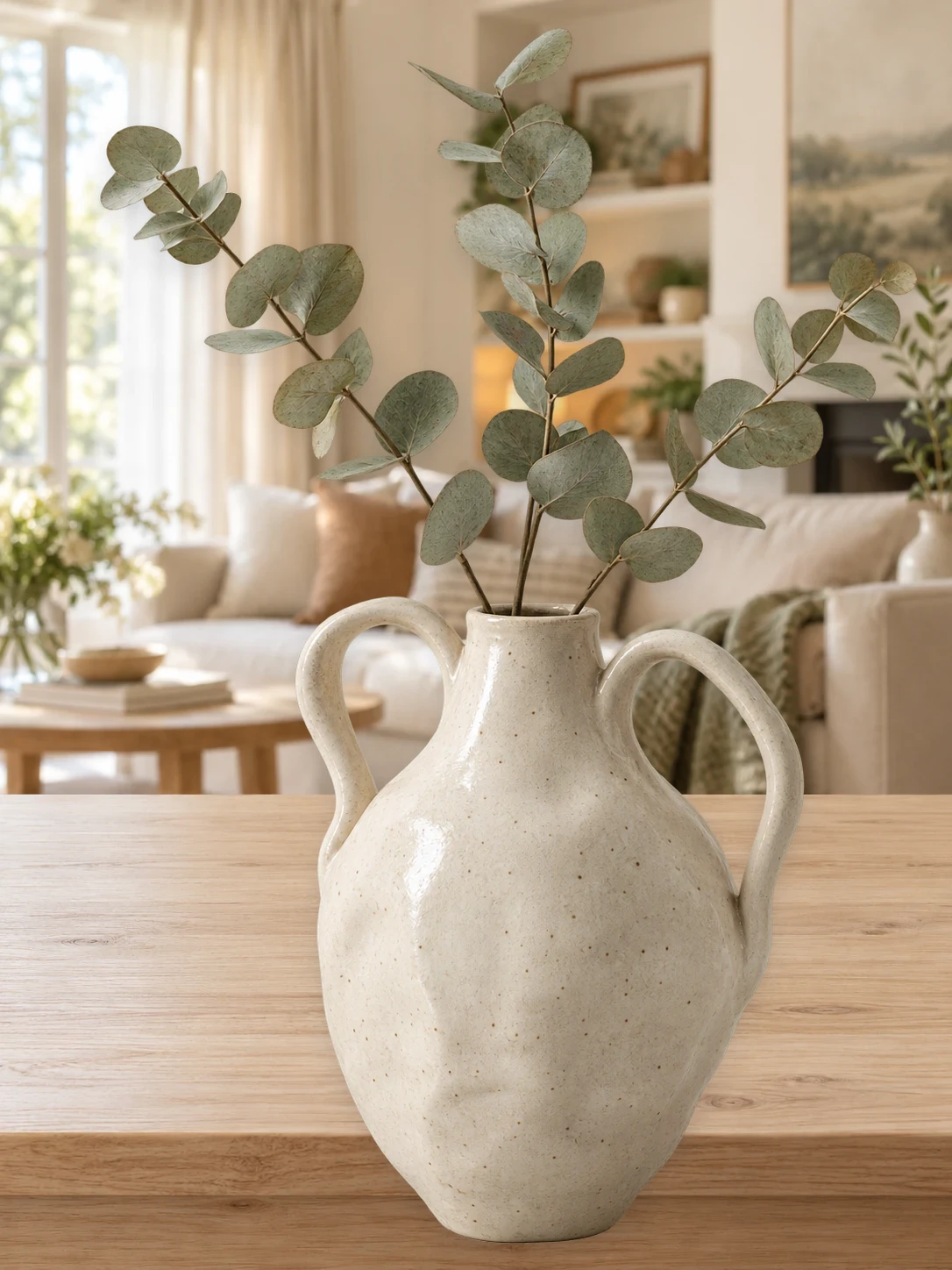

Describe a new scene for your subject
Sometimes a plain color is not enough and a stock photo never quite fits. Once your subject is cut out, describe a setting such as a marble kitchen counter, a sunny beach, or a soft studio gradient. The AI background generator creates a backdrop on a separate layer, so you can try new descriptions while keeping the same subject.
The generator is useful when you need many variations quickly: a product on several surfaces, a portrait in different rooms, or a seasonal scene for each campaign. Each generation uses credits, and the cost is shown in the editor before you start. Save the versions you like and compare them before choosing the final composition.

Describe the scene you have in mind
Write the setting, colors, and light you want. Generate a background, review the result, and refine the description to explore another direction in a few seconds.
Generate an AI background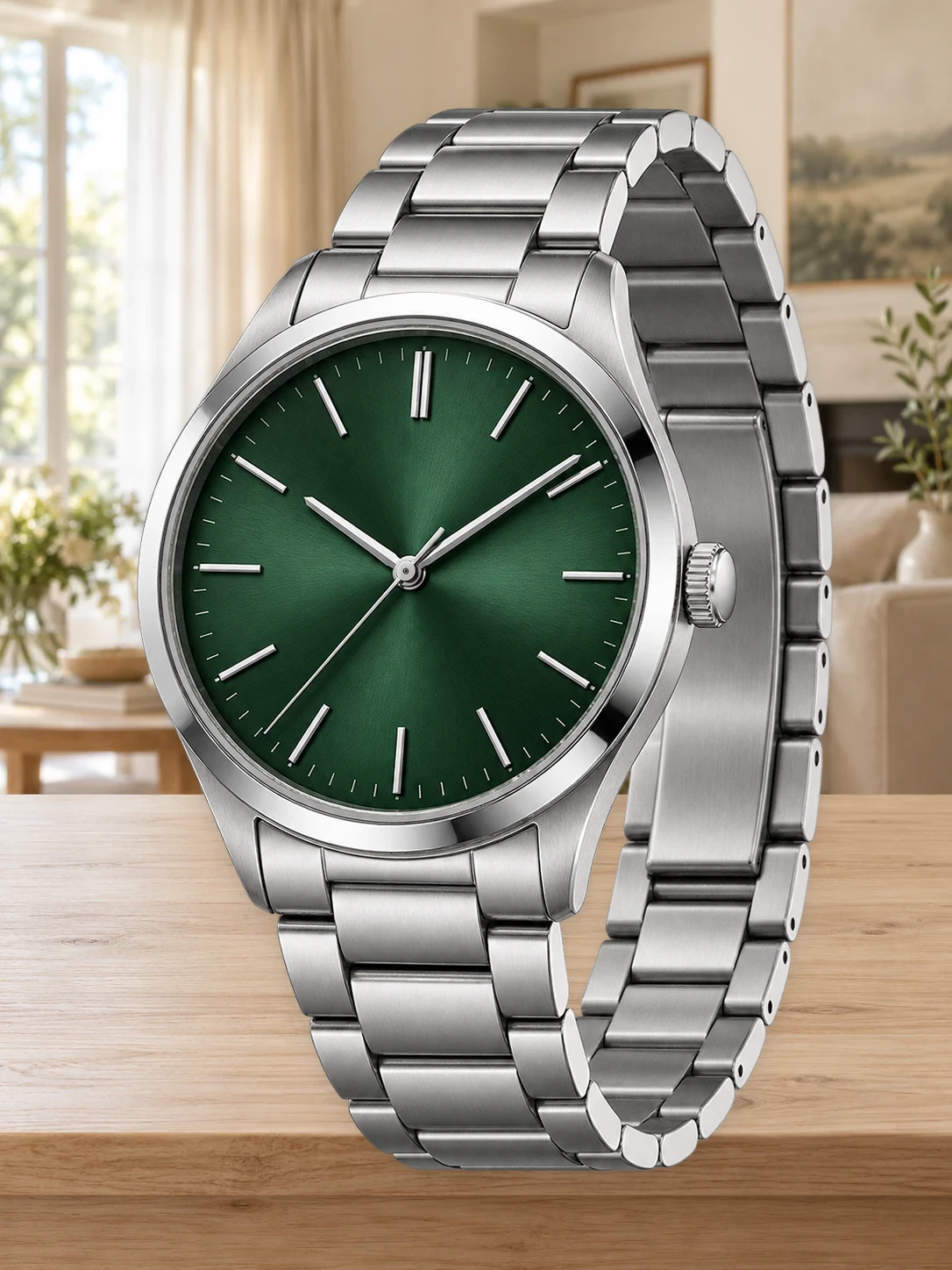
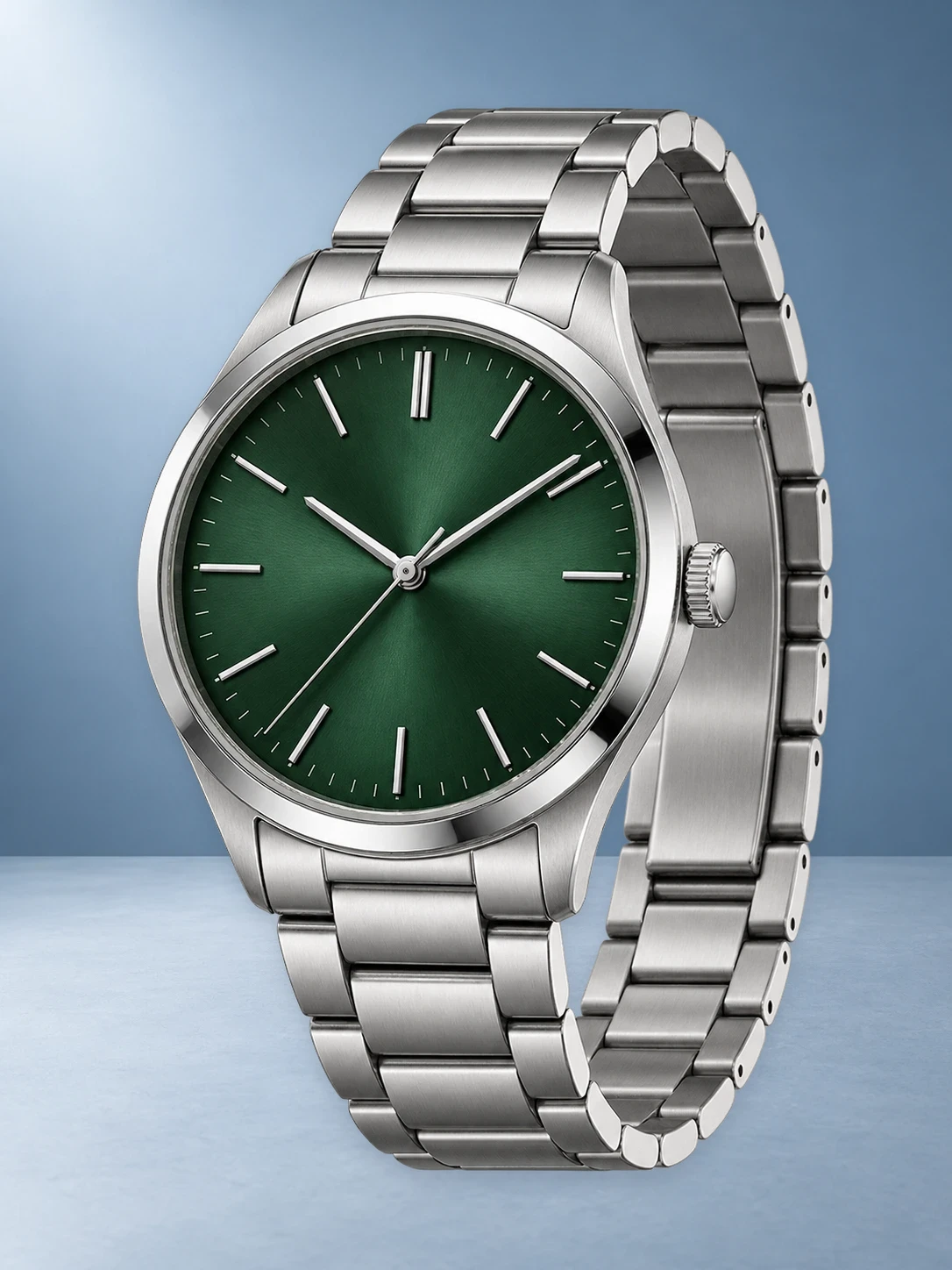
Fit the subject into the scene
After generation, adjust the size and position of your cutout so it sits naturally. Add text or a template when the image needs a layout.
Change the backgroundFrom photo to finished image in three steps
- 01
Upload your photo
Upload a photo to cut out your subject, then open the AI background panel.
- 02
Describe and generate
Enter a scene description, check the credit cost shown, and start generation.
- 03
Review and download
Adjust the composition and download the finished image as PNG, JPG, or WebP.
Questions about BackgroundRemove
Does the AI generate my product or person again?
No. It generates a separate background and places your existing cutout on it. Review edges, perspective, and light before downloading.
How do I write a good scene description?
Name the place, the surface, the light, and a color mood, for example a wooden table by a window in warm morning light. Short, concrete descriptions work best.
Do I need an account to generate an AI background?
Yes. AI background generation requires a signed-in account and enough credits for the request. Account creation is free; generating an AI background uses credits, with the cost shown before you start.
How many credits does background removal use?
Background removal, AI background generation, and image expansion are separate actions with their own credit cost. The estimate is shown beside the action button before you confirm, and the per-credit price above is the cost of one credit, not a fixed price per image.
Which image types can I upload?
You can upload PNG, JPG, JPEG, WebP, or AVIF images.
Can I review the result before I download it?
Yes. Compare the original with the cutout, zoom in on the edges, and refine them with the brush before you download.