Product photos for your online store
Product photo background remover
Remove backgrounds from product photos for white backdrops, marketplace listings, and new scenes. Refine each cutout, or use Bulk Editing for a full collection.
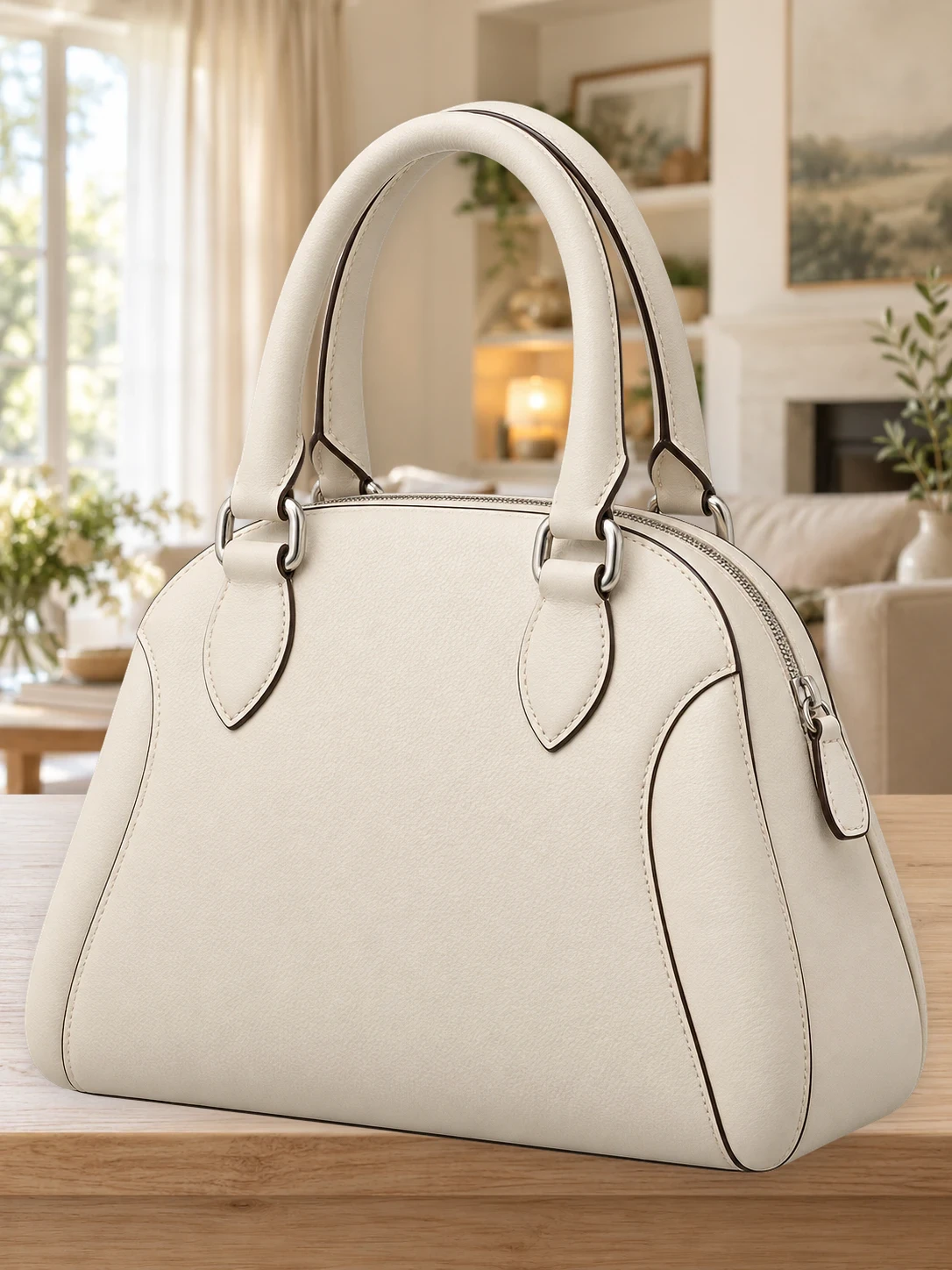
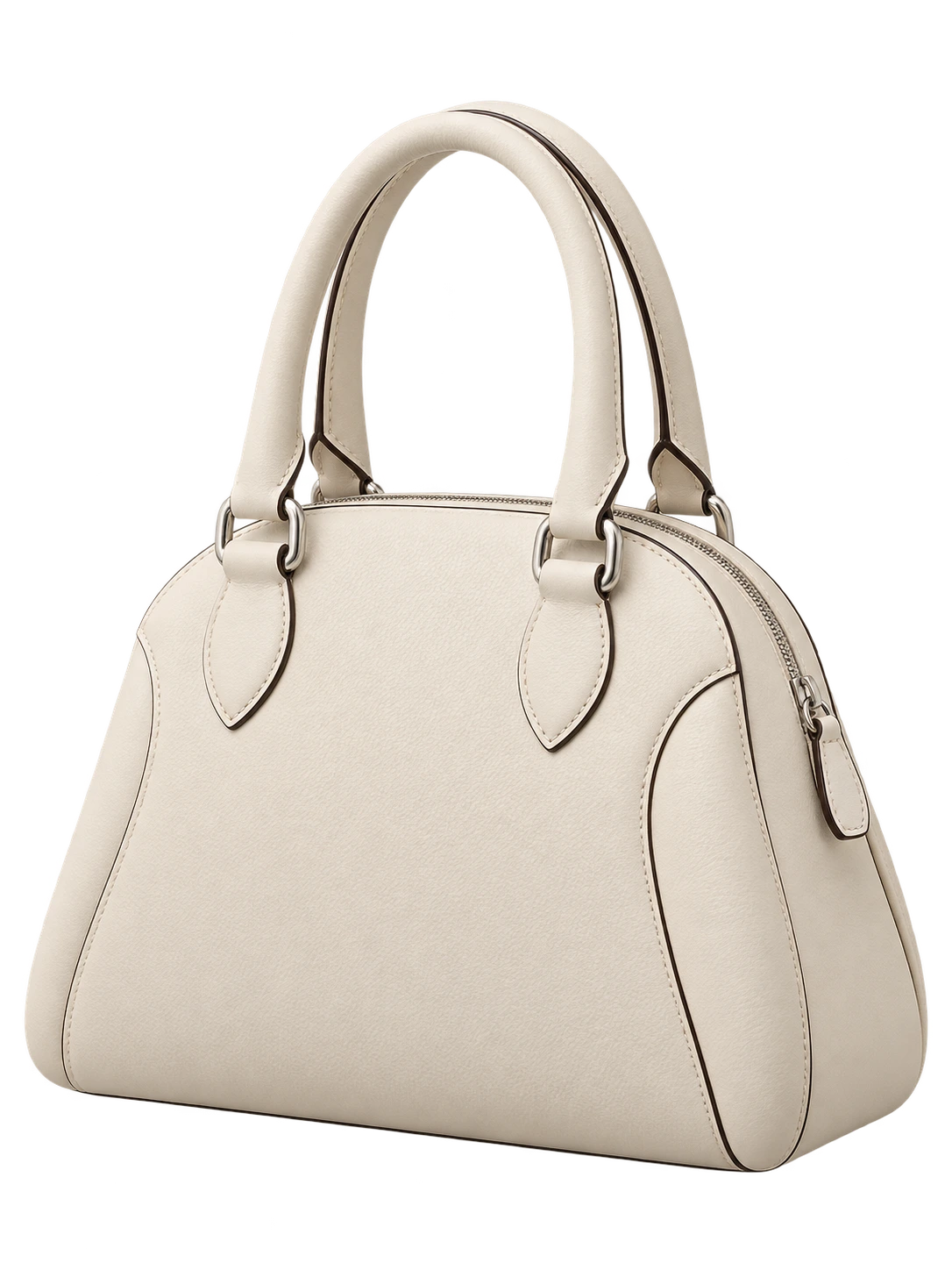
Consistent product photos for your store
Shoppers compare products in a grid, so busy rooms and uneven light make a listing look less trustworthy. Removing the background puts the item on a neutral canvas, keeps colors true, and gives every product the same framing. The same cutout can then become an ad, a banner, or a social post without a new photo shoot.
Marketplaces such as Amazon, eBay, and Etsy ask for a plain or white main image, and many stores want every thumbnail cropped the same way. Remove the background from each photo, set the canvas once, and export files that are ready to upload without a separate retouching step.
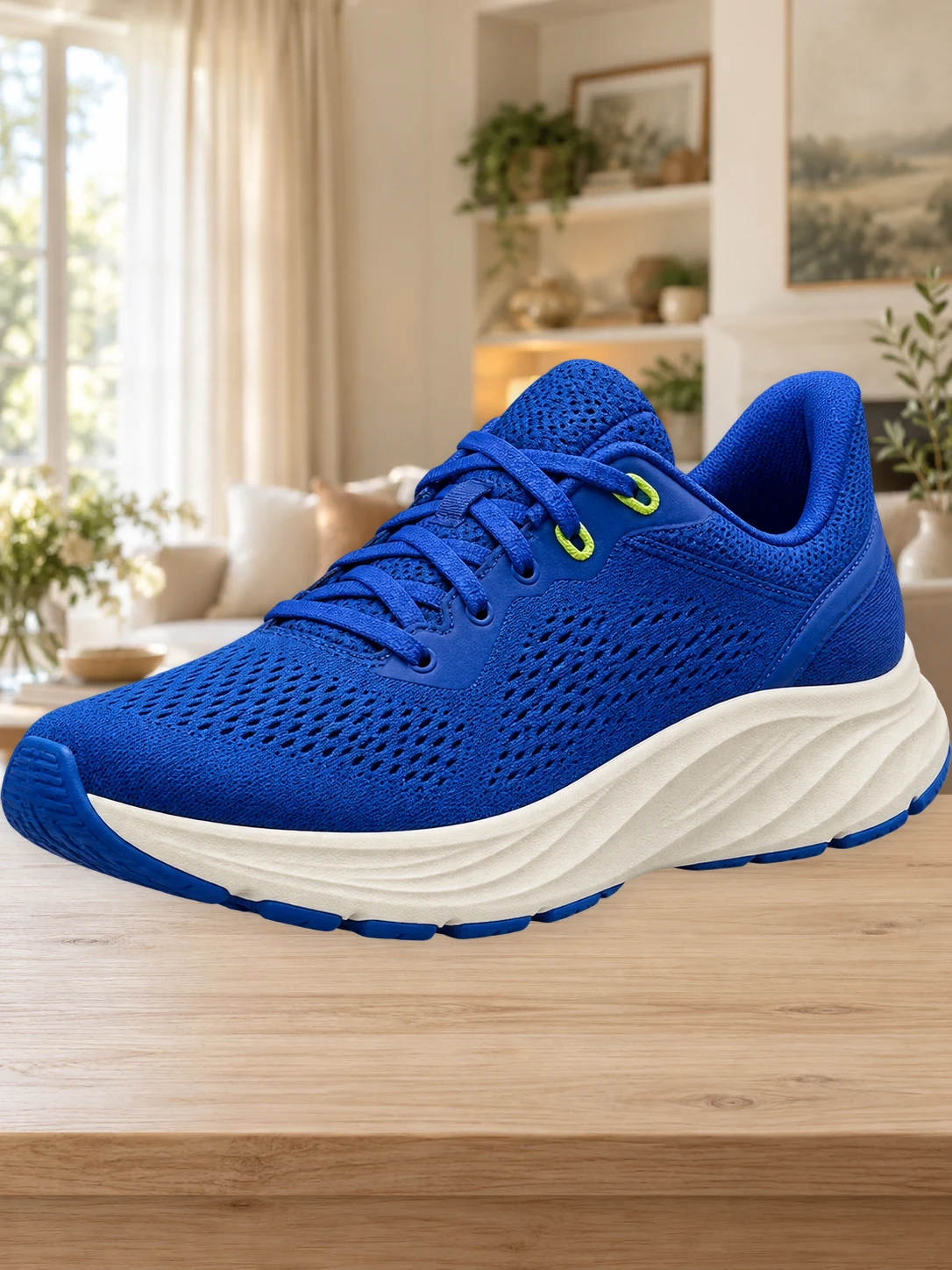
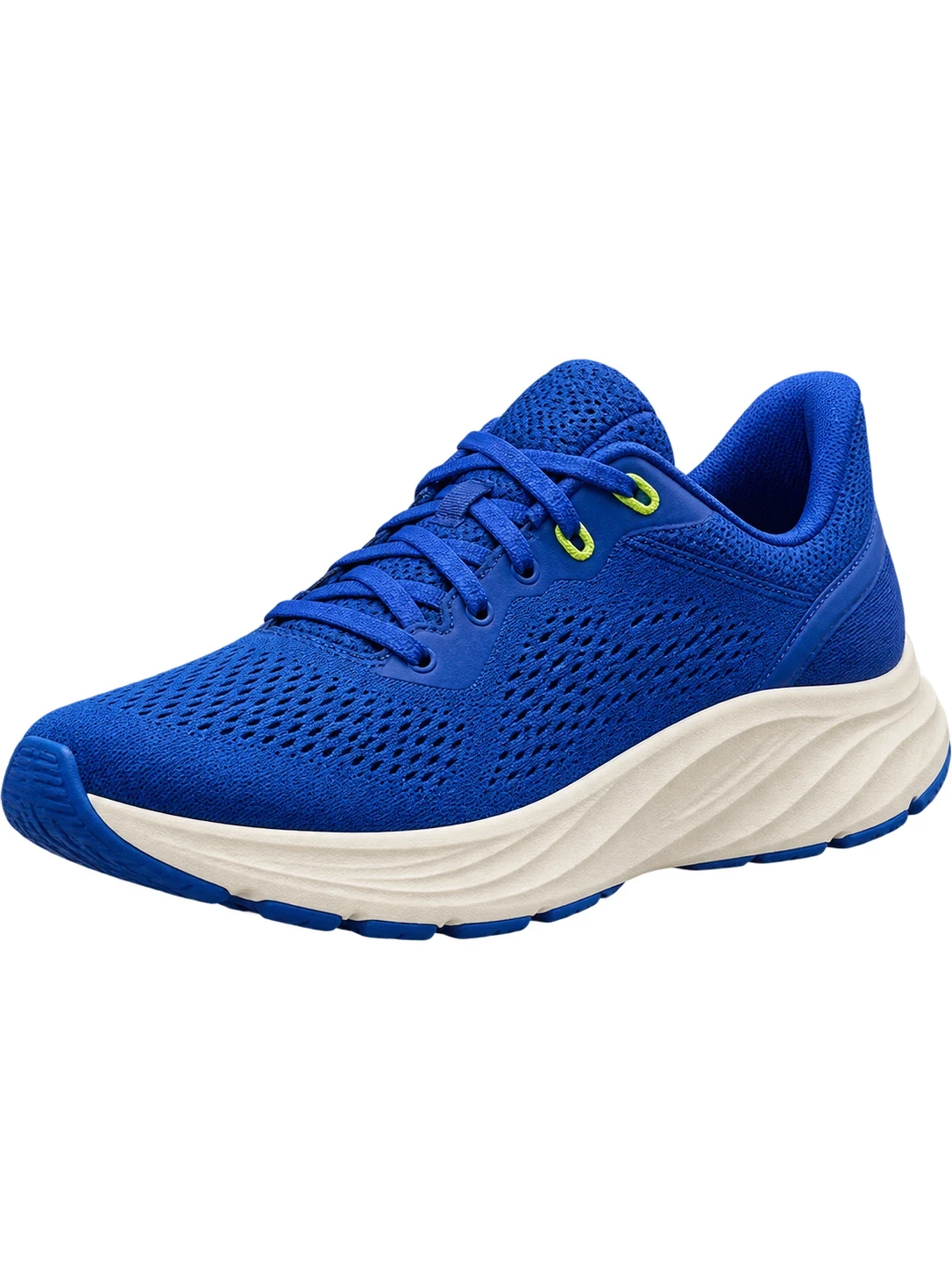
A clean white background for every product
The background remover clears the original backdrop and leaves your product ready for a white canvas or a transparent export. Use the cutout brush to tidy any edge, then download a file that meets marketplace image rules.
Choose a background color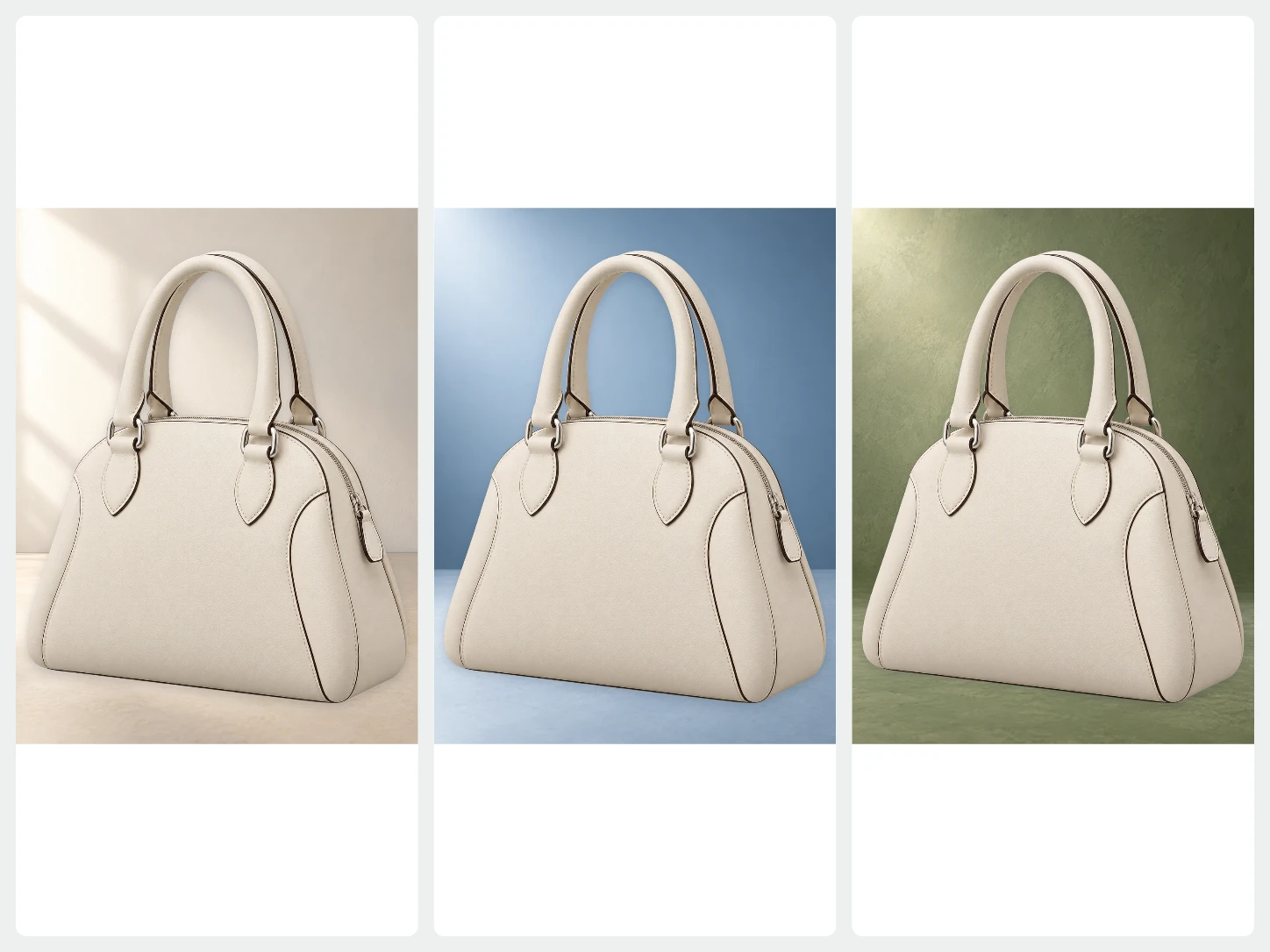
One product, many settings
After removing the background, choose a photo backdrop or describe a new setting for the AI to generate. Your product stays on its own layer, so you can move, resize, and rebalance the scene at any time.
Generate an AI background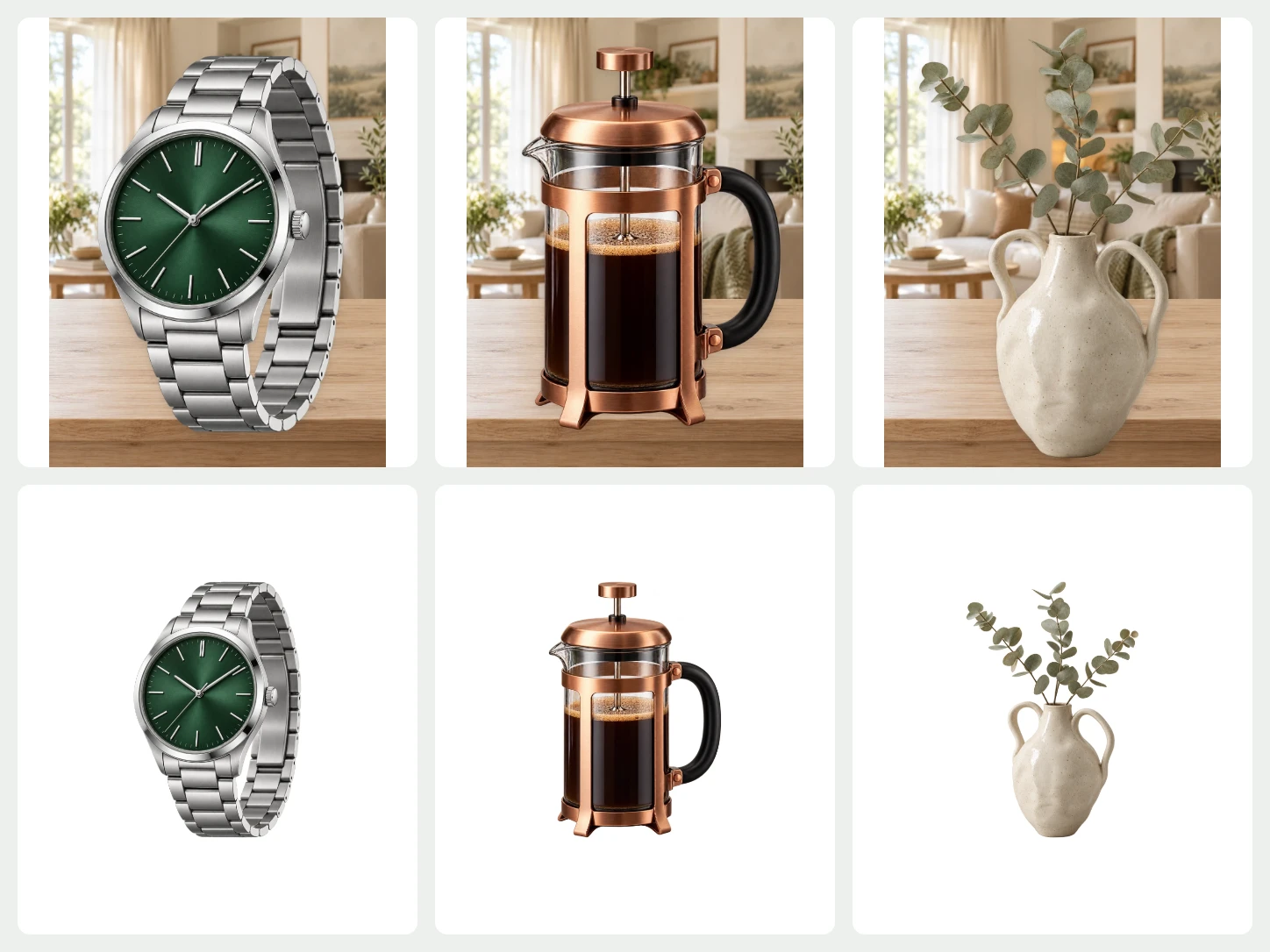
Remove backgrounds from a whole collection
Select multiple product photos and apply one background, canvas size, and placement to all of them. Review each image, fix the exceptions, and download the finished catalog as a single ZIP.
Bulk Editing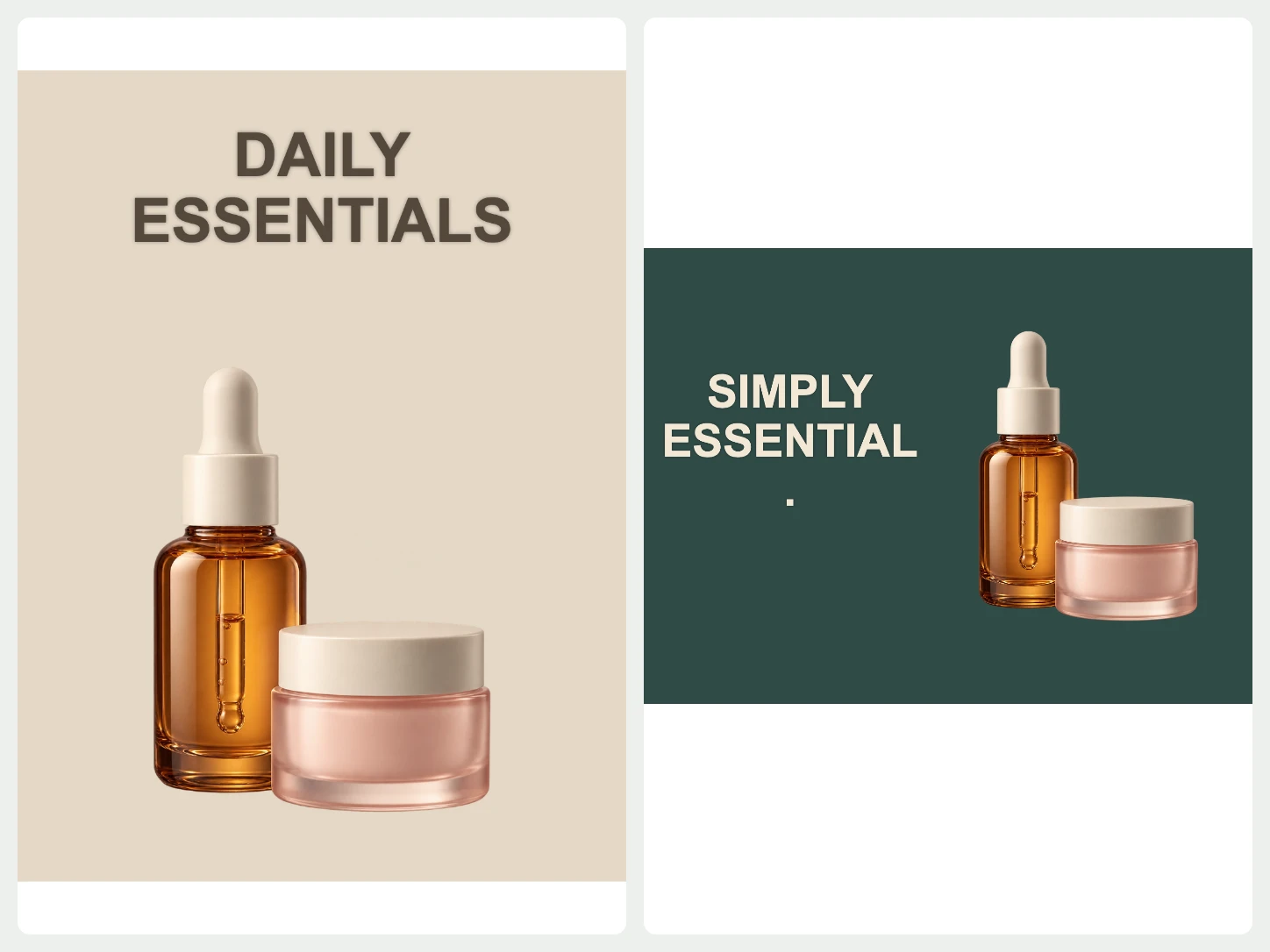
Turn the cutout into a design
Add a template, a text layer, or a new crop for a product feature, social post, or promotion. The product and every design element stay editable in the same workspace.
Explore templates and textFrom photo to finished image in three steps
- 01
Upload your photo
Choose one image and the background remover starts at once. For a whole set of photos, open Bulk Editing.
- 02
Edit the result
Keep it transparent or add a color, photo, or AI scene. Refine the cutout, crop it, or add text while you preview.
- 03
Download
Export PNG, JPG, or WebP. Pick PNG or WebP when you need a transparent background.
Questions about BackgroundRemove
Can I use one product photo for different designs?
Yes. Keep the cutout transparent, choose a color or photo background, then continue with templates, text, or a crop. Check the finished image against the rules of the marketplace where you publish it.
Does the background remover keep fine product edges?
It keeps straps, handles, and glossy edges in most photos. If a thin detail is missing, restore it with the cutout brush before you download.
What file should I download for a marketplace listing?
Choose JPG with a white background when a marketplace asks for a white main image, or PNG when you want to keep the transparent cutout for your own designs.
Can I upload more than one image?
The home page handles one image at a time. To remove backgrounds from several photos together, use Bulk Editing, which needs an account and image credits.
Which image types can I upload?
You can upload PNG, JPG, JPEG, WebP, or AVIF images.
Can I review the result before I download it?
Yes. Compare the original with the cutout, zoom in on the edges, and refine them with the brush before you download.