Detailed cutouts for client work
Background removal for photographers
Speed up background removal for studio and location photos. Refine hair and fine details, match the light, and deliver a consistent series to your clients.
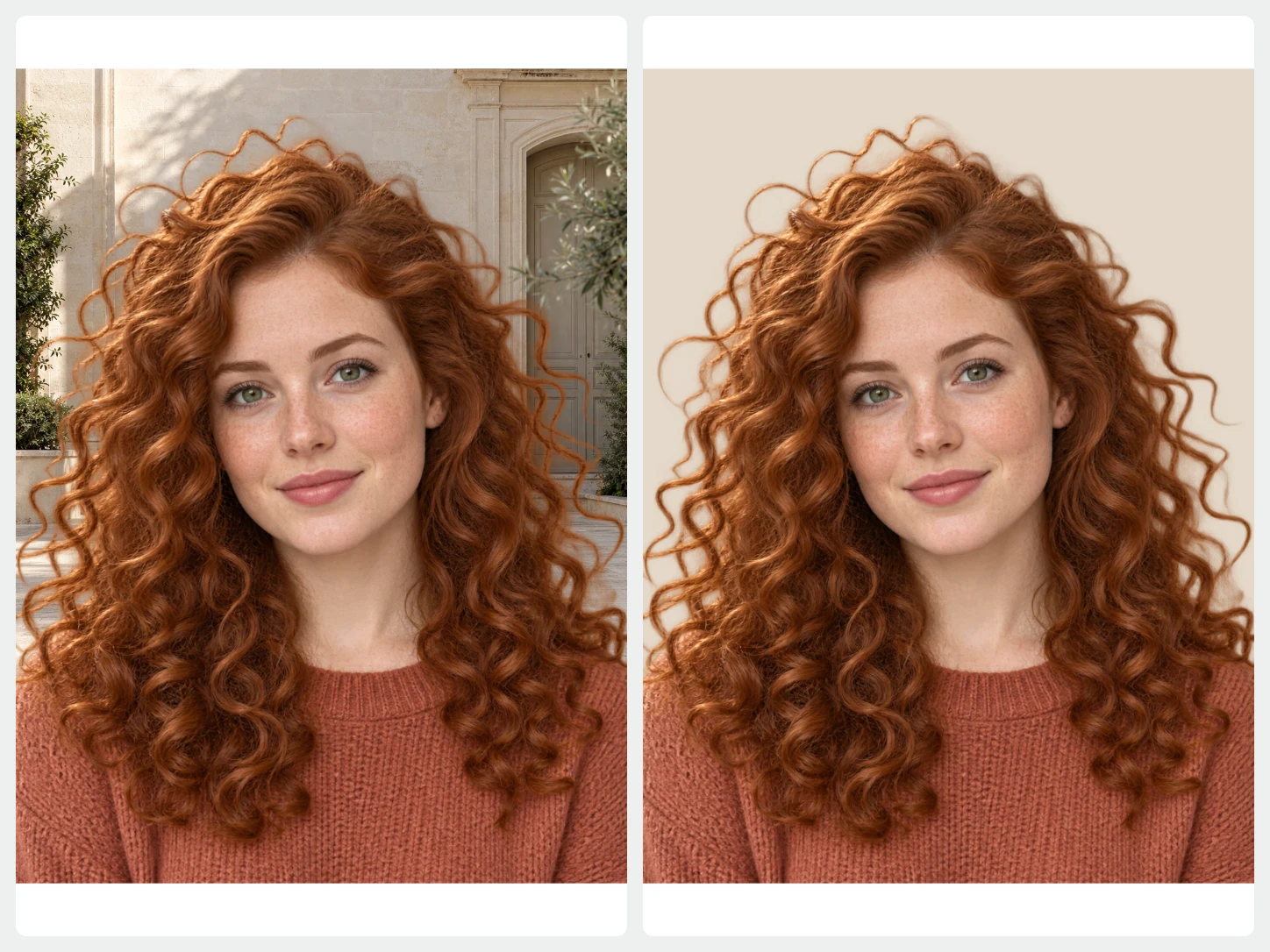
Spend less time masking, more time shooting
Selecting hair and fabric by hand can eat an evening of editing. The AI background remover produces a strong first mask in seconds, and the brush lets you restore or erase details where your eye says it matters. Adjust exposure and color afterwards so the subject sits naturally on its new background before you send proofs.
The workflow fits alongside the tools you already use. Remove the background first, export a transparent PNG at full resolution, and finish the composite in your favorite editor, or complete the whole job in the browser when the brief is simple. Event, product, and school photographers save the most time on large, repetitive sets.
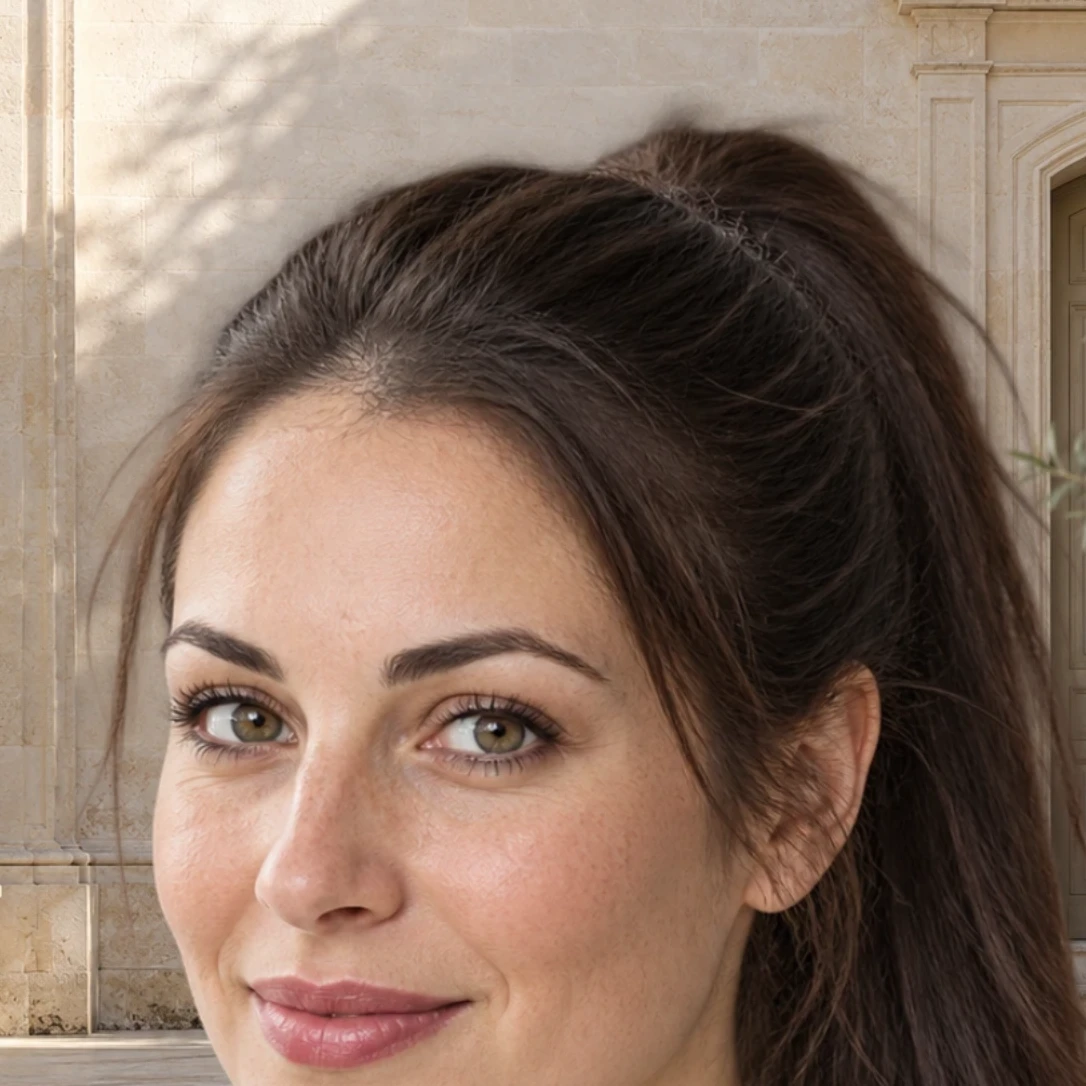
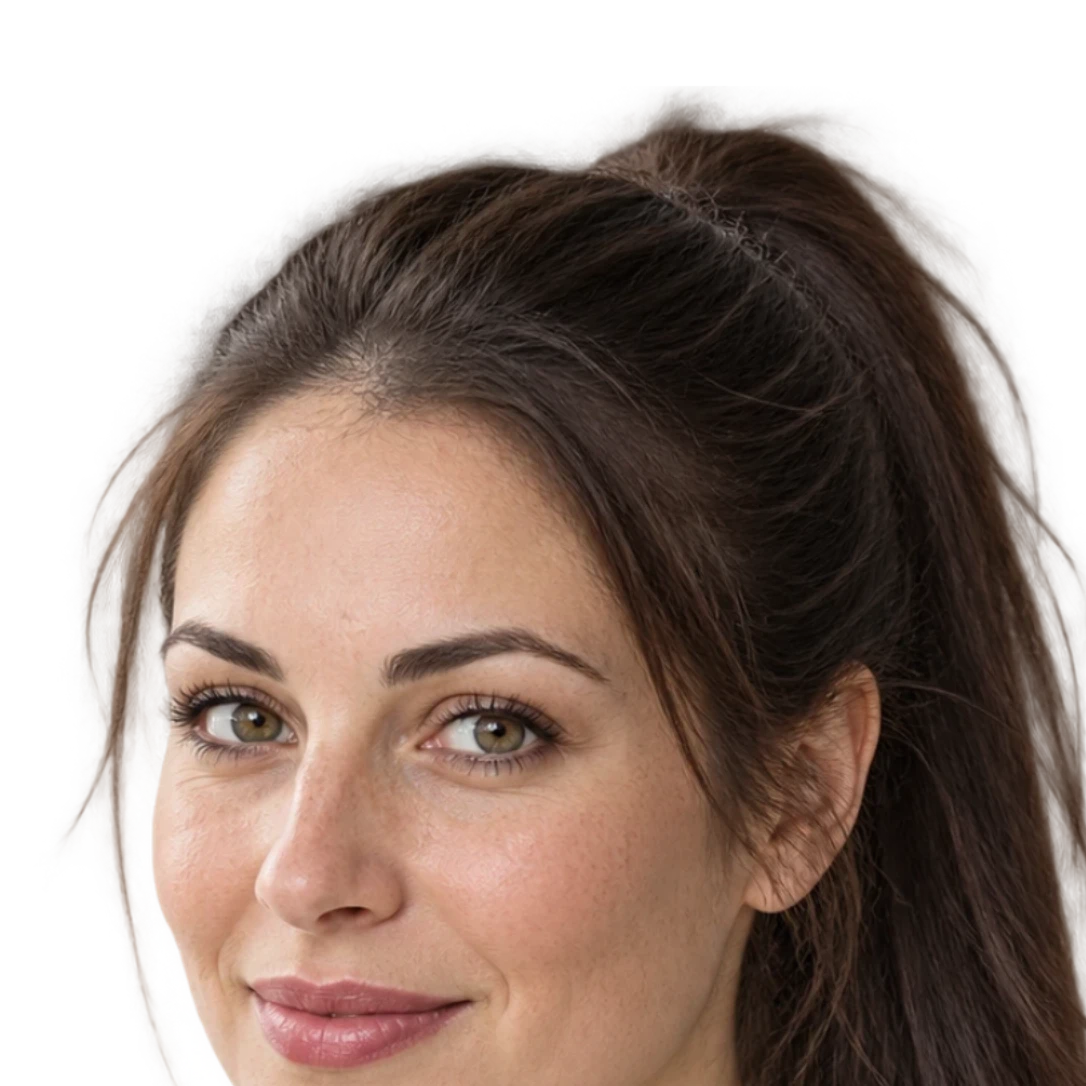
Keep hair and fine detail
Start with automatic background removal, then zoom in and restore strands of hair, veils, or fabric with the brush. Erase leftovers just as easily before you export.
Refine your cutout
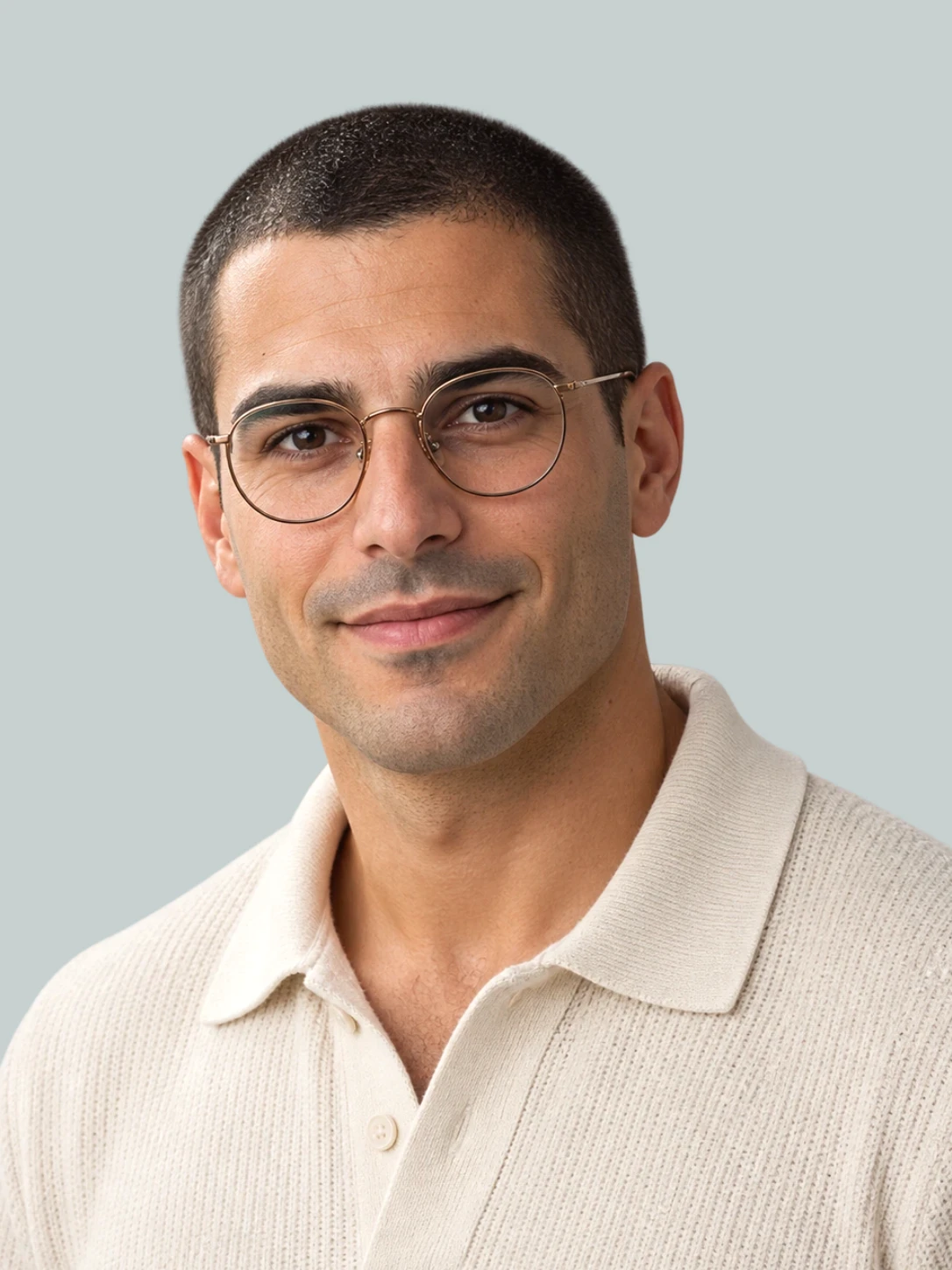
Match light and color
Adjust brightness, contrast, saturation, and warmth so the subject fits its new background. Add a soft shadow to ground the cutout and make the composite believable.
Adjust color and light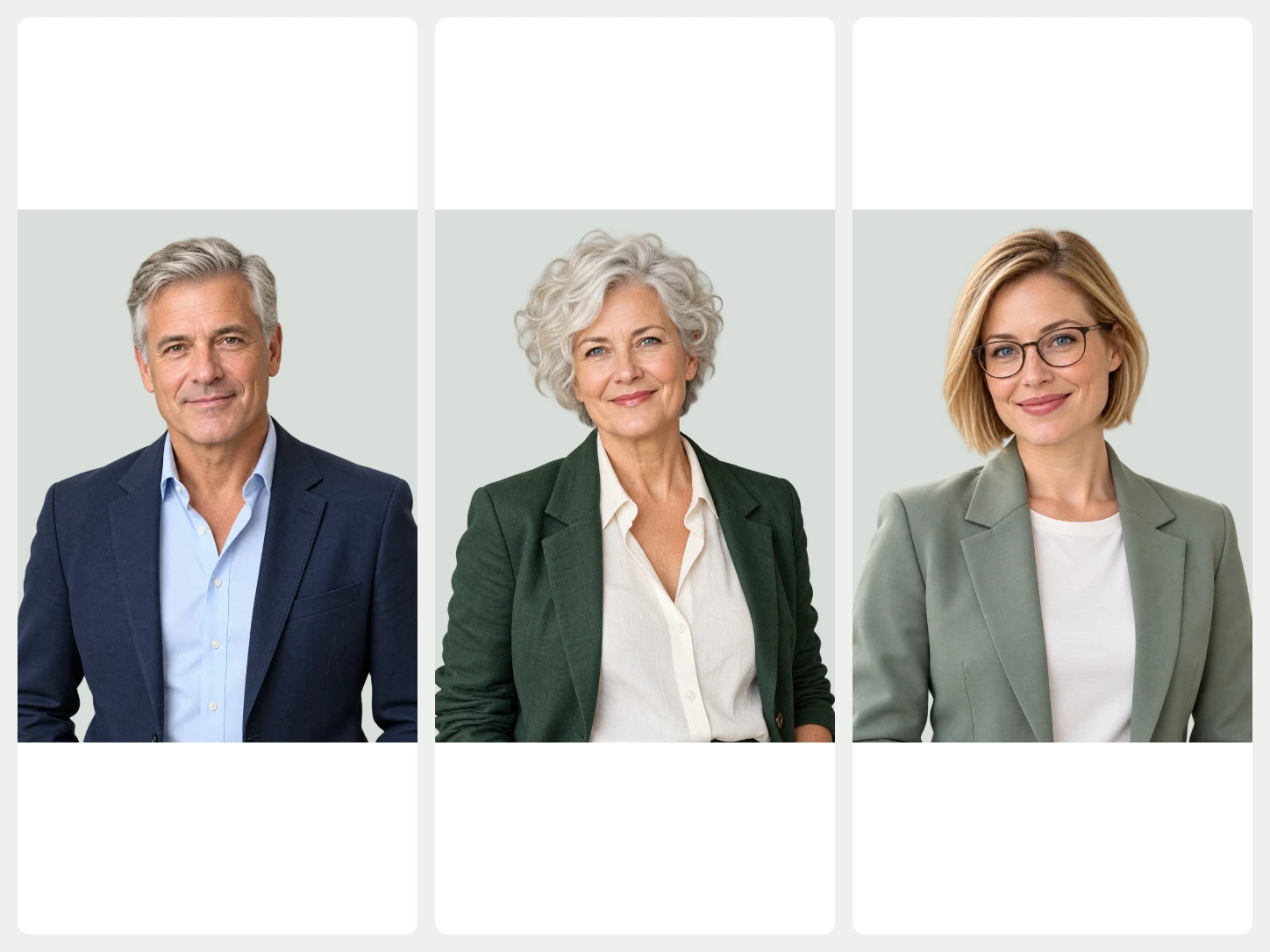
Deliver a consistent series
Process a whole shoot in Bulk Editing and apply one backdrop, canvas size, and placement. Give the client images a consistent look and download them in a single ZIP.
Bulk EditingFrom photo to finished image in three steps
- 01
Upload your photo
Choose one image and the background remover starts at once. For a whole set of photos, open Bulk Editing.
- 02
Edit the result
Keep it transparent or add a color, photo, or AI scene. Refine the cutout, crop it, or add text while you preview.
- 03
Download
Export PNG, JPG, or WebP. Pick PNG or WebP when you need a transparent background.
Questions about BackgroundRemove
Can I refine the cutout by hand?
Yes. Use the erase and restore brushes to correct edges after automatic background removal, and zoom in to check hair and fabric.
Can I process a whole shoot?
Yes. Sign in and use Bulk Editing to remove backgrounds from a full series, apply the same background and canvas, and download a ZIP.
Does the result keep the original resolution?
Yes, the cutout keeps the size of the uploaded photo within the upload limit, so you can deliver it at the same resolution or crop it for each client format, from web galleries to large prints.
Can I upload more than one image?
The home page handles one image at a time. To remove backgrounds from several photos together, use Bulk Editing, which needs an account and image credits.
Which image types can I upload?
You can upload PNG, JPG, JPEG, WebP, or AVIF images.
Can I review the result before I download it?
Yes. Compare the original with the cutout, zoom in on the edges, and refine them with the brush before you download.